Organize your library with folders and kontext | yomeru.ai
Create folders for each series, add a kontext description to improve AI translations, and reorder folders by drag-and-drop in the sidebar.
Folders are the backbone of your library. Group uploads by series, study topic, or however you like -- then give each folder a description to help our AI produce better translations and grammar explanations.
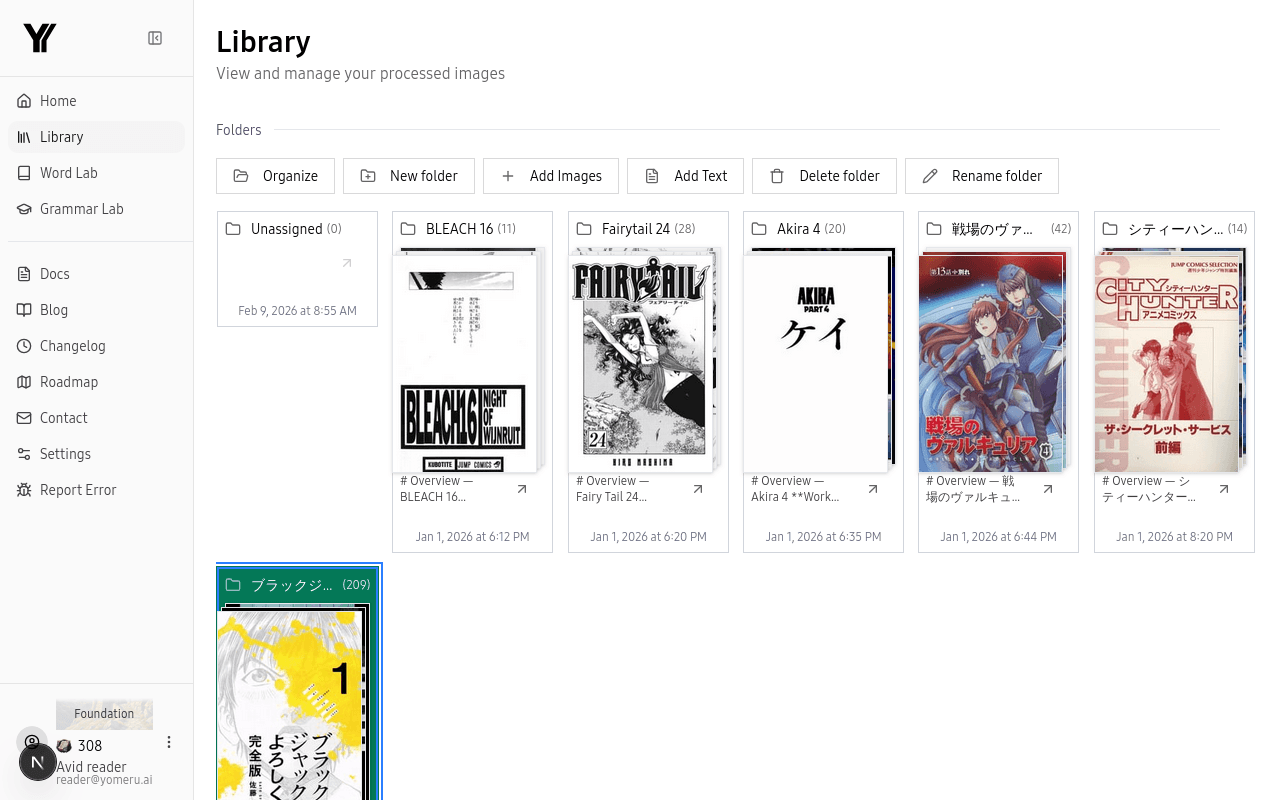 Organize your uploads into folders with custom descriptions to improve AI translation accuracy
Creating and Managing Folders
Create a folder
In your Library, click New Folder, type a name (for example, "One Piece Vol. 1" or "JLPT N3 Practice"), and click Create.
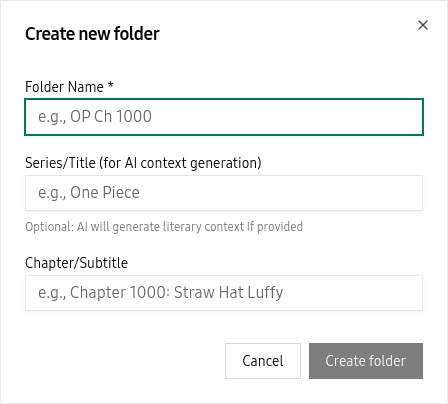 Name your folder and optionally add a series title for AI-generated context
Add a kontext description
Each folder has an optional description field called kontext. Write a short note about what the folder contains -- the series name, genre, or any relevant context. Our AI uses this information to produce more accurate translations, grammar breakdowns, and example sentences for everything inside that folder.
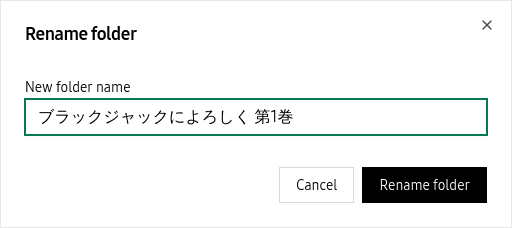 Write or generate a kontext description to improve AI translations and grammar breakdowns
Organize with drag-and-drop
Drag folders to reorder them in the sidebar. The Unassigned folder is always pinned at the top and holds any content that has not been placed in a folder yet.
Drag folders in the sidebar to reorder them — Unassigned is always pinned at the top
Why kontext matters
The more specific your folder description, the better the AI results. Writing "Slice-of-life manga set in a high school" gives the AI far more to work with than leaving the field blank.
Thumbnail Grid View
Your library displays every uploaded page as a visual thumbnail in a grid. Hover over a thumbnail to see details like page count, and click any thumbnail to open it in the reader. This makes it easy to scan through a chapter visually and jump straight to the page you want.
Search and Filter
Use the search bar at the top of your library to find content by name. You can also filter by folder or content type, and sort results by name, date added, or recently viewed -- helpful once your library grows beyond a handful of uploads.
Related Pages
Your library — organize and manage Japanese content | yomeru.ai
Create folders for each series, upload chapters as ZIPs, move and delete files, and search your entire collection from one place.
Supported formats and how to upload content | yomeru.ai
JPG, PNG, WebP (10 MB max), PDFs and ZIPs up to 100 MB. Choose manga or novel mode before submitting — the dialog shows the credit cost upfront.