Supported formats and how to upload content | yomeru.ai
JPG, PNG, WebP (10 MB max), PDFs and ZIPs up to 100 MB. Choose manga or novel mode before submitting — the dialog shows the credit cost upfront.
Getting content into yomeru.ai takes just a few clicks. Drag files in, pick a page type, and our system handles the rest.
How to Upload
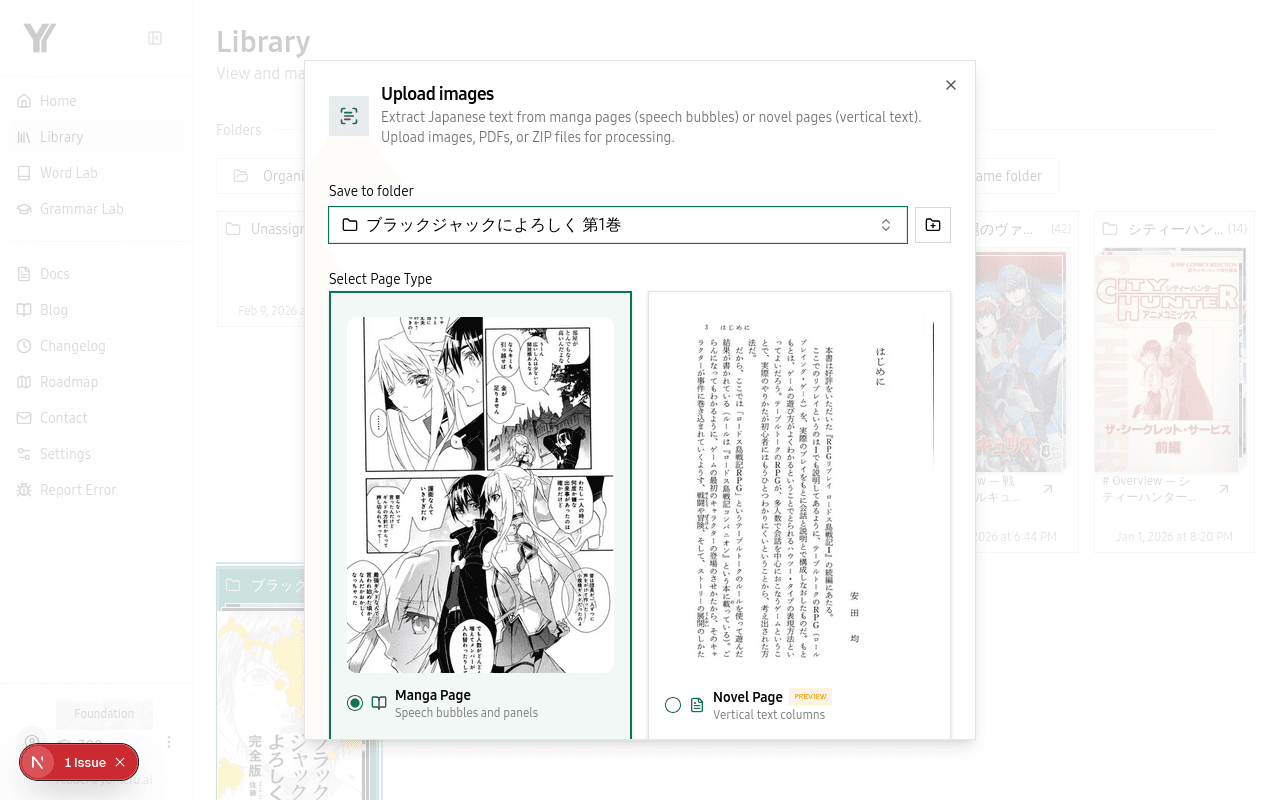 The upload dialog lets you choose between Manga and Novel mode and shows the credit cost before you submit
Open the upload dialog
In your Library, click Upload or drag files directly onto the page. You can also click Select files to browse your computer, or Select folder to upload an entire folder of images at once.
Choose a page type
Before submitting, select Manga or Novel mode. Manga mode detects speech bubbles; Novel mode handles full-page prose. Picking the right mode makes a real difference in accuracy.
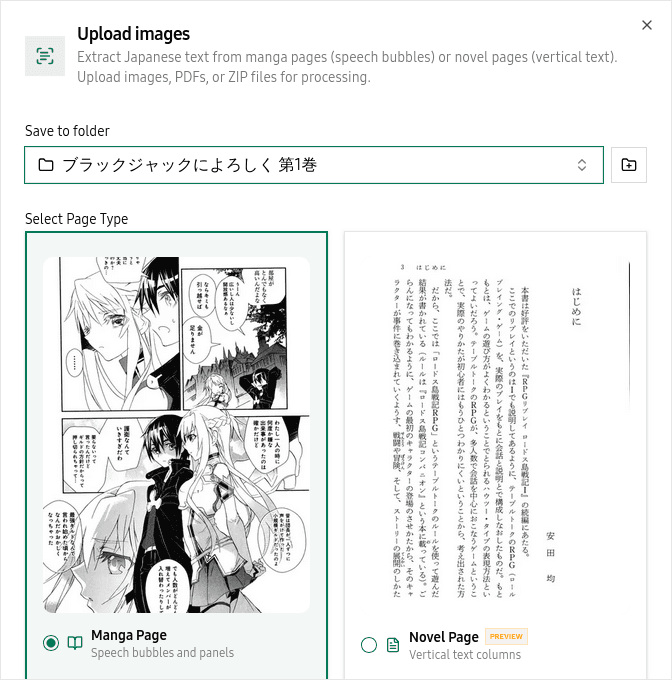 Manga mode detects speech bubbles; Novel mode handles full-page prose
Review and submit
The upload dialog shows your file count and the estimated credit cost (1 credit per image). Once you are happy, click Submit to start processing.
Credit cost
Each image costs 1 credit to process. The upload dialog always shows the total cost before you confirm, so there are no surprises.
Supported Formats
Images (Manga and Novel scans)
| Format | Max Size |
|---|---|
| JPG / JPEG | 10 MB |
| PNG | 10 MB |
| WebP | 10 MB |
Text Files
| Format | Max Size | Character Limit |
|---|---|---|
| TXT | 10 MB | 10,000 characters |
| DOC / DOCX | 10 MB | 10,000 characters |
| EPUB | 10 MB | 10,000 characters |
| MOBI | 10 MB | 10,000 characters |
| RTF | 10 MB | 10,000 characters |
| 100 MB | 10,000 characters | |
| Pasted text | -- | 10,000 characters |
Batch Formats
| Format | Max Size | Notes |
|---|---|---|
| ZIP | 100 MB | Must contain images |
| PDF (image-based) | 100 MB | Each page extracted as a separate image |
| Multiple files | 500 MB total | Per upload session |
See Batch Uploads for details on ZIP, PDF, and folder uploads.
Choosing the Right Page Type
Pick Manga when your content has speech bubbles, text boxes, or sound effects -- comics, doujinshi, and similar material. Pick Novel when the text is continuous prose without bubbles -- light novels, scanned textbooks, articles, and documents.
If you pick the wrong mode, you can reprocess the page later at no extra cost (first reprocess is free).
Tips for Quality Results
High-resolution source images give the best results. Aim for 300+ DPI scans when possible, and avoid heavily compressed screenshots. Pages where the text has strong contrast against the background will be read more accurately than pages with detailed art overlapping the text.
Related Pages
Organize your library with folders and kontext | yomeru.ai
Create folders for each series, add a kontext description to improve AI translations, and reorder folders by drag-and-drop in the sidebar.
Upload an entire chapter at once — ZIP, PDF, folder | yomeru.ai
Drop a ZIP (100 MB max), a PDF, or a folder of images to process a full chapter in one go. Pages queue automatically; processing runs in the background.