Text overlays — tap any word for an instant breakdown | yomeru.ai
Tap any text region in the reader for a word-by-word breakdown with readings, meanings, and part of speech. Click a word to open its full Word Lab entry.
Every detected text region in your content becomes a clickable overlay on the image. This is the core of how you learn while reading — tap any piece of text and get an instant breakdown of every word in it.
No setup needed
Overlays are created automatically when your content is processed. Just click and start learning.
How It Works
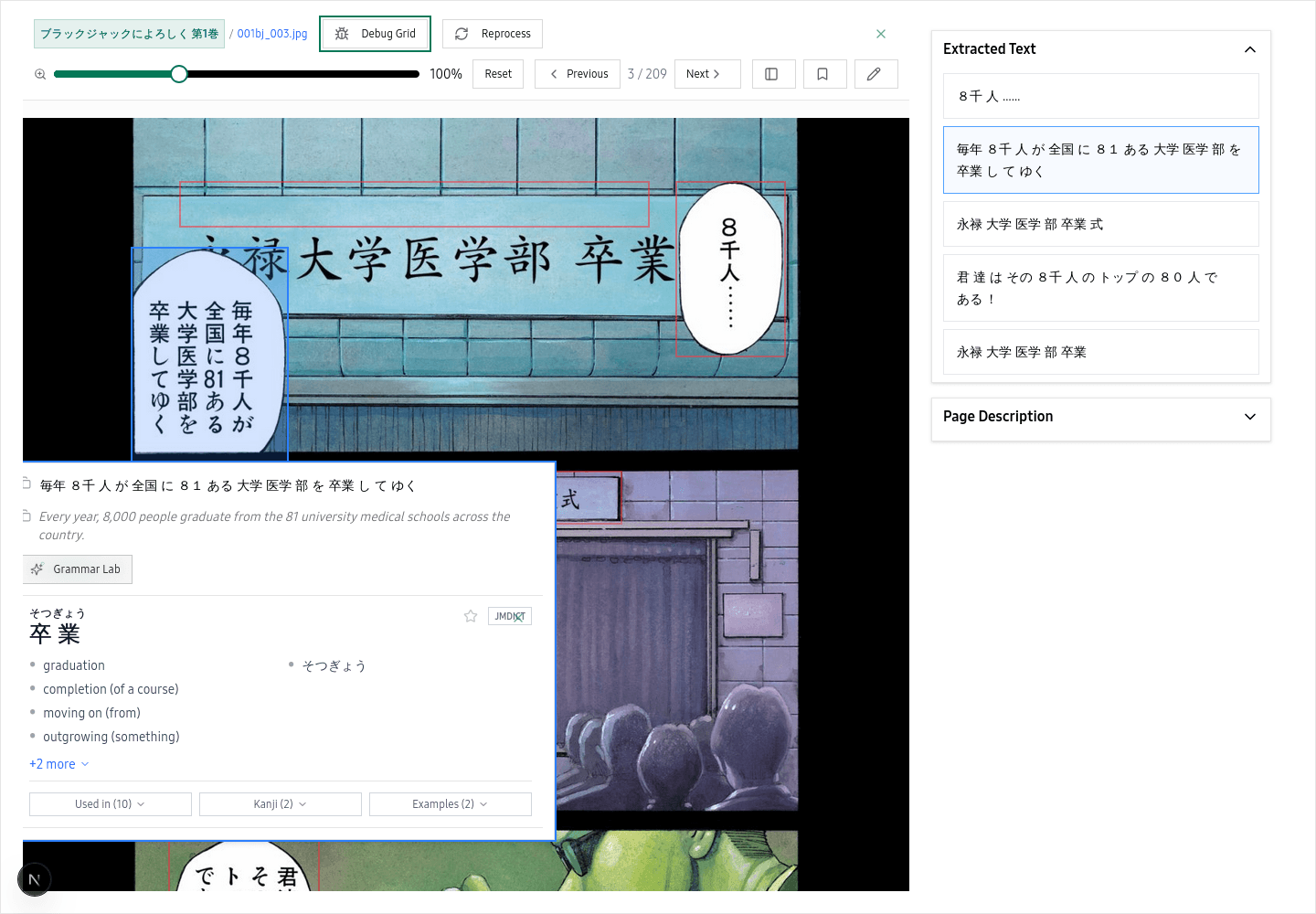 Click any text region to see a word-by-word breakdown with readings, meanings, and parts of speech
Click a text region
Tap or click any text on the page. A floating popup appears with the full text broken down word by word.
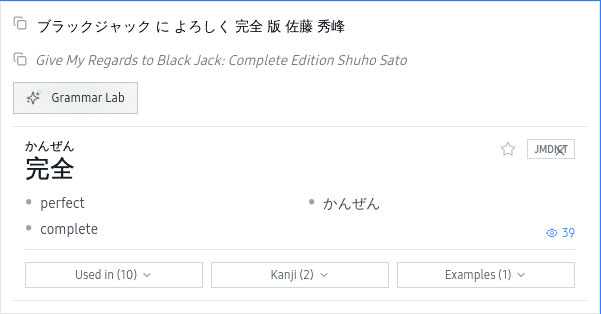 Tap any text on the page to open a floating popup with the full word-by-word breakdown
Read the word breakdown
Each word in the popup shows its reading (furigana), English meaning, and part of speech (noun, verb, particle, etc.). You can scan the whole sentence at a glance.
Tap a word for more
Click any individual word inside the popup to open its full Word Lab entry — kanji details, additional meanings, and example sentences.
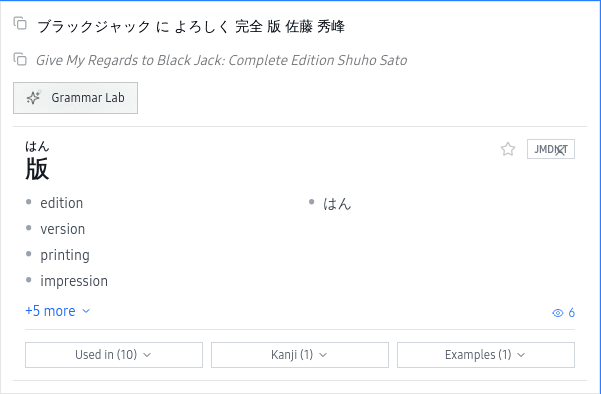 Click any word in the popup to open its full entry with kanji details and examples
Desktop vs. Mobile
The popup appears just below the text region you clicked, positioned so it stays fully visible on screen. If the text is near the bottom of the viewer, the popup shifts upward automatically.
On phones and tablets, the popup anchors to the bottom of your screen instead of floating next to the text. This keeps it easy to read and tap without your hand covering the content above.
From Overlay to Learning
The text overlay is your starting point for every learning feature in yomeru.ai. From the popup, you can jump to a full Grammar Lab analysis, request a context-aware translation, or generate example sentences for any word. Everything is one click away from the text you are already reading.
Related Pages
Reader interface — navigation, bookmarks, AI summary | yomeru.ai
Open any processed page in fullscreen, navigate with arrow keys, bookmark scenes, copy text, and get an AI page summary from the reader toolbar.
How reading progress and bookmarks work | yomeru.ai
Your position is saved every time you turn a page. Bookmark any page to flag it, then jump back from the bookmarks panel whenever you want.