Account security — password, 2FA, and active sessions | yomeru.ai
Change your password, enable two-factor authentication with an authenticator app, and review every device currently signed in to your account.
The Security page lets you manage your password, enable two-factor authentication, and review where your account is currently signed in.
Getting there
Click your avatar in the top-right corner, then select Settings and open the Security tab.
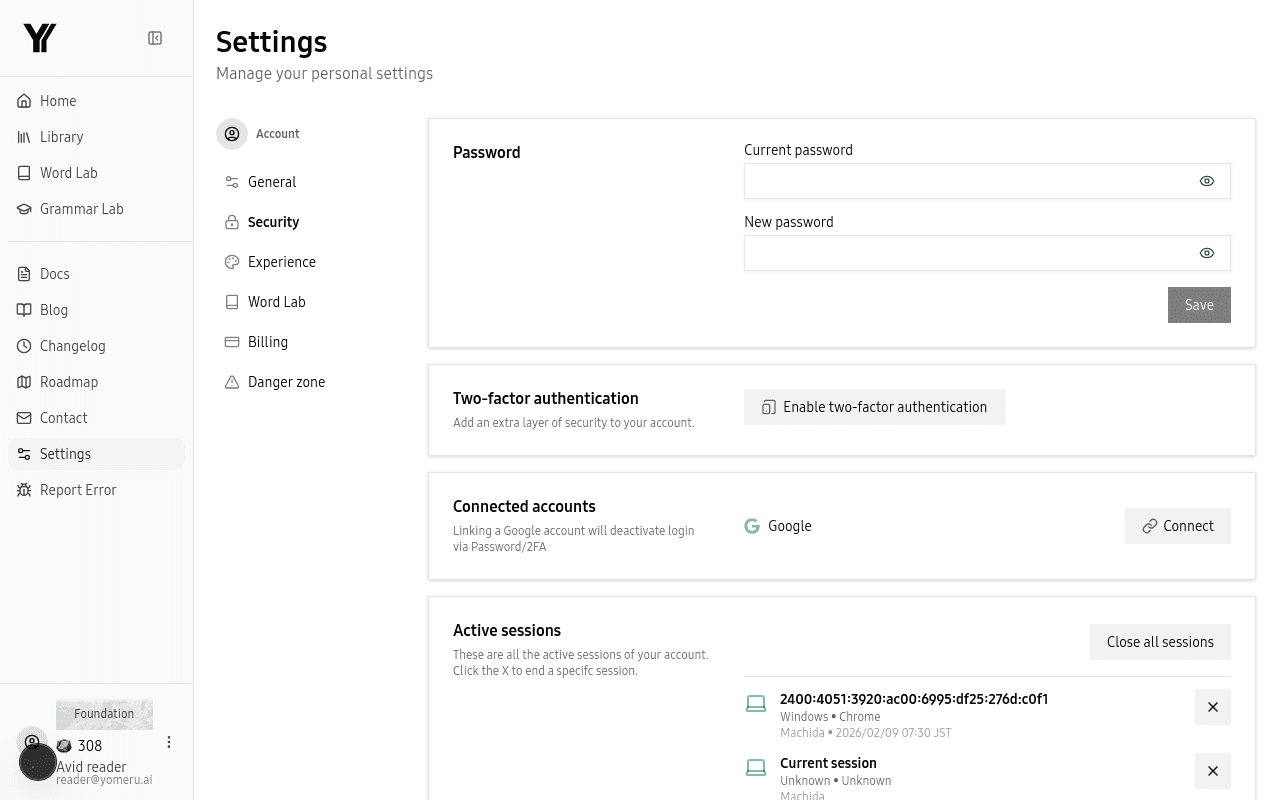 Manage your password, enable two-factor authentication, and review active sessions
Changing Your Password
You can update your password at any time from the Security page. Enter your current password, then choose a new one.
Your new password must meet all of these requirements:
- At least 12 characters long
- Contains an uppercase letter
- Contains a lowercase letter
- Contains a number
- Contains a special character (e.g.
!@#$%)
Two-Factor Authentication (2FA)
Adding 2FA means that even if someone learns your password, they still cannot access your account without your authenticator app.
Enable 2FA
On the Security page, click Enable 2FA. A QR code will appear.
Scan with your authenticator app
Use an app like Google Authenticator, Authy, or 1Password to scan the QR code.
Enter the verification code
Type the six-digit code from your authenticator app to confirm the setup.
Save your backup codes
Store the backup codes somewhere safe. These are your only way back in if you lose access to your authenticator.
Active Sessions
The sessions list shows every device and browser where your account is currently signed in, along with the last activity time. If you see a session you do not recognize, click Sign Out next to it to revoke access immediately.
Connected Accounts
This section shows whether your Google account is linked. You can link or unlink Google from the Profile Settings page.
Related Pages
Set your timezone for credit resets and timestamps | yomeru.ai
Choosing the right timezone ensures credits reset at midnight in your local time and upload dates show correctly. Change it anytime in Settings.
How notifications work — in-app and email | yomeru.ai
Get notified when pages finish processing via the bell icon, or receive emails for account events like password resets and subscription confirmations.