Update your profile — name, avatar, and email | yomeru.ai
Change your display name, upload a profile picture, update your email address, and link or unlink your Google account from the Profile tab.
Your profile controls how you appear in yomeru.ai and how the platform reaches you. You can update your name, avatar, email address, and connected sign-in methods from one place.
Getting there
Click your avatar in the top-right corner, then select Settings and open the Profile tab.
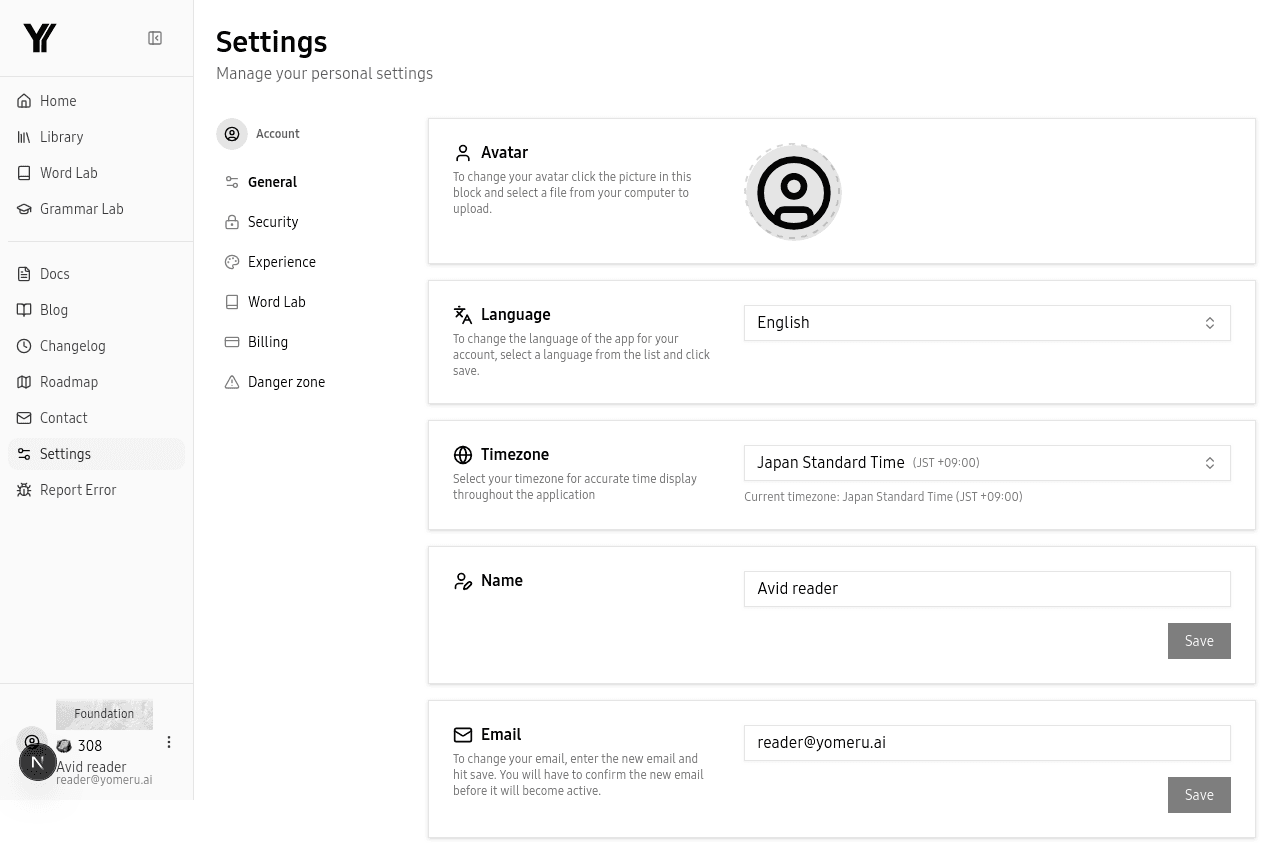 Update your display name, avatar, email address, and linked accounts from one place
Display Name
Your first and last name appear throughout the app. To change them, edit the name fields on the Profile page and click Save. Changes take effect immediately.
Profile Avatar
Upload a profile picture to personalize your account. Click your current avatar (or the placeholder), choose an image file (JPG, PNG, or WebP), crop it if needed, and save. Your new avatar shows up across the app right away.
Email Address
Your email is how you sign in and how yomeru.ai sends you important messages like password resets and magic links.
Start the change
On the Profile page, click Change Email and enter your new email address.
Verify the new address
A verification link is sent to your new email. Your profile will show a "pending" status until you confirm.
Confirm and activate
Click the link in the verification email. If you do not see it, wait for the cooldown timer and click Resend.
Google-only accounts
If you originally signed up with Google and have not set a password, email change may not be available. Link an email/password login first from the Security page.
Linked Accounts
You can connect your Google account as an additional sign-in method, or remove it if you prefer email-only login.
To link Google: Find the "Linked Accounts" section on the Profile page, click Link next to Google, and authorize the connection.
To unlink Google: Click Unlink next to Google and confirm. You must have at least one active sign-in method (email/password or magic link) before unlinking.
If you signed up with Google and want to add email/password login, click Set Password on the Profile page, then choose a password that meets the security requirements.
Deleting Your Account
Scroll to the bottom of Profile Settings to find the Delete Account option.
This is permanent
Deleting your account removes all your data, including your entire library, favorites, and processing history. This cannot be undone.
For the full deletion process and what happens to your data, see Danger Zone.
Related Pages
Account settings — profile, security, and billing | yomeru.ai
Manage your display name, avatar, timezone, password, 2FA, notification preferences, and subscription all from account settings.
Set your timezone for credit resets and timestamps | yomeru.ai
Choosing the right timezone ensures credits reset at midnight in your local time and upload dates show correctly. Change it anytime in Settings.