Upload your first manga or novel to yomeru.ai | yomeru.ai
Drag a JPG, PNG, PDF, or ZIP into your library, choose manga or novel mode, and get interactive text in 10–30 seconds. Formats and tips inside.
Uploading content is how you get started on yomeru.ai. Drop an image, PDF, or text file into your library, and our AI turns it into an interactive reading experience in seconds.
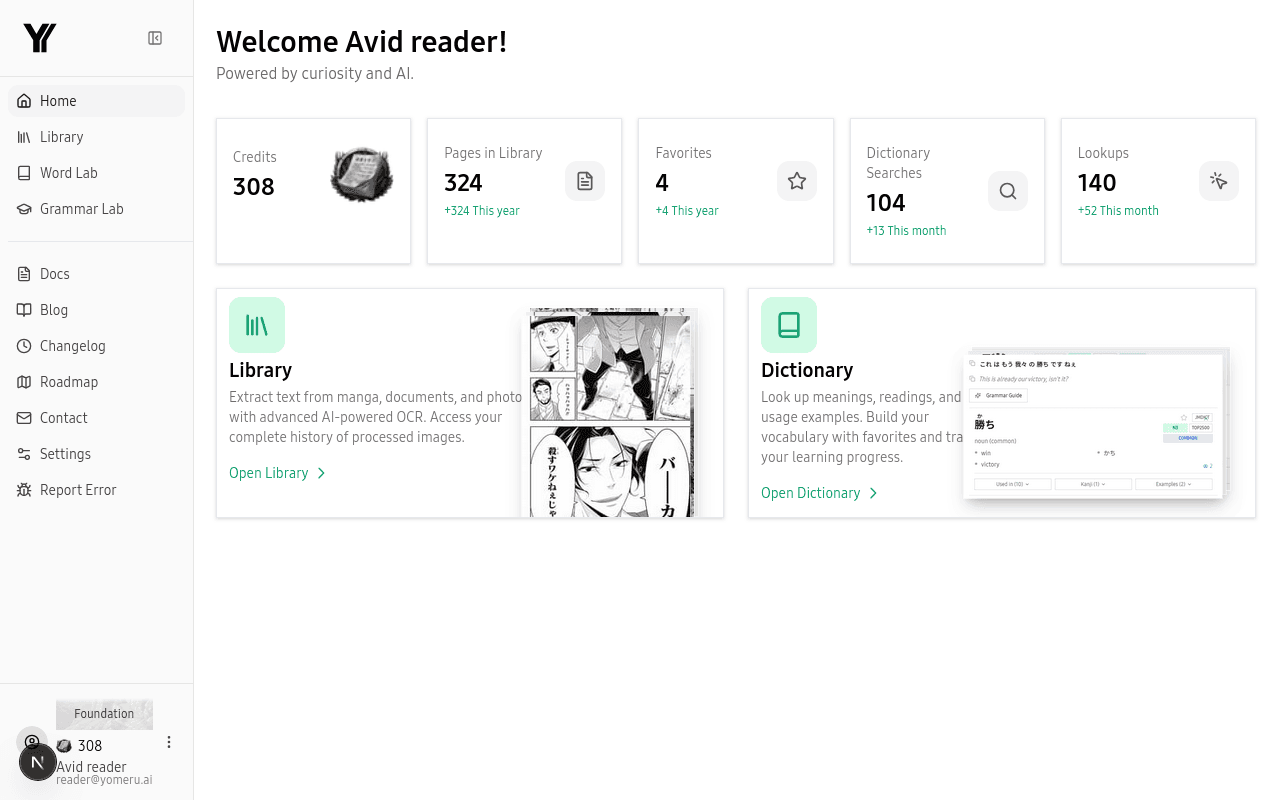 The dashboard gives you a quick overview of your library, credits, and recent activity
Credit cost
Each image or page you process costs 1 credit. Word lookups and all AI features are free after that.
Supported formats
Images — JPG, PNG, and WebP up to 10 MB each. These work for manga pages, novel scans, or any photo of Japanese text.
Text files — TXT, DOC/DOCX, EPUB, MOBI, RTF, and PDF up to 10 MB and 10,000 characters per file. You can also paste Japanese text directly.
Batch uploads — ZIP archives and PDFs up to 500 MB. Each page inside is extracted and processed individually. You can also select multiple files or an entire folder at once.
Manga vs. Novel mode
Before uploading images, choose the right page mode. This tells our AI how to find and extract text on the page.
Use Manga mode for comic pages with speech bubbles, sound effects, and stylized text. Our AI detects individual bubbles and text regions, preserving the reading order so dialogue flows naturally. This is the right choice for manga, doujinshi, and any panel-based content.
Use Novel mode for text-heavy pages without speech bubbles — light novel scans, textbook pages, articles, or any continuous prose. Our AI treats the entire page as running text and optimizes for dense vertical or horizontal layouts.
How to upload
Open the uploader
Go to your Library and click the Upload button. The upload panel will appear.
Choose your mode
Select Manga or Novel mode depending on your content. You can read more about the difference in the tabs above.
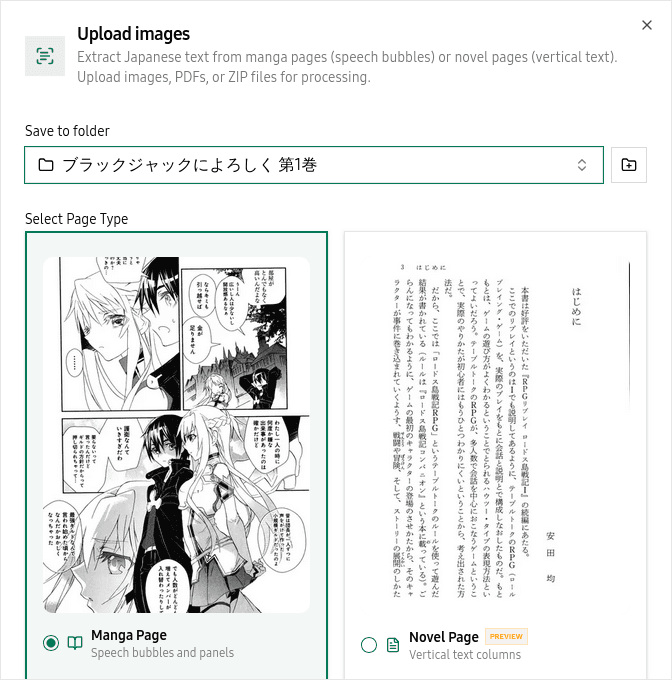 Select Manga for speech bubbles or Novel for continuous prose
Add your files
Drag and drop files into the upload area, or click Select files to browse. You can also click Select folder to upload an entire folder at once. ZIP archives and multi-page PDFs are supported for batch uploads.
Wait for processing
Our AI processes each page in roughly 10 to 30 seconds. A progress indicator shows you the status. Once a page is done, you can open it in the reader immediately — you do not need to wait for the entire batch to finish.
Tips for best results
High-quality source images make a big difference. Aim for at least 720p resolution with clear contrast between text and background. Clean scans with sharp speech bubbles or crisp printed text give the most accurate results. Avoid heavily compressed or blurry images when you can.
For batch uploads, grouping pages from the same chapter into a single ZIP or folder keeps your library organized and makes sequential reading easier.
Troubleshooting
Related pages
Create an account — email, magic link, or Google | yomeru.ai
Sign up in under a minute using email and password, a passwordless magic link, or your Google account. Free Expedition plan, no credit card needed.
How credits work — what costs and what's free | yomeru.ai
1 credit = 1 page processed. Word lookups, grammar, translations, and all AI features are always free. Plan comparison and credit tips inside.