How to reprocess a page for better OCR results | yomeru.ai
If text was missed or you chose the wrong mode, reprocess the image for free. One free reprocess per image; additional passes cost 1 credit each.
If the AI missed a speech bubble, misread some text, or you uploaded with the wrong page type, reprocessing runs the extraction again on the same image. Every image gets one free reprocess.
When to Reprocess
Reprocessing is worth trying when text was missed or partially recognized, a speech bubble was not detected, you chose Manga mode but should have used Novel mode (or vice versa), or the OCR quality just does not look right. A second pass through the system often catches what the first pass missed.
One free reprocess per image
The first reprocess is completely free. After that, each additional reprocess costs 1 credit.
How to Reprocess
Open the image
Navigate to the page in your library and open it in the reader.
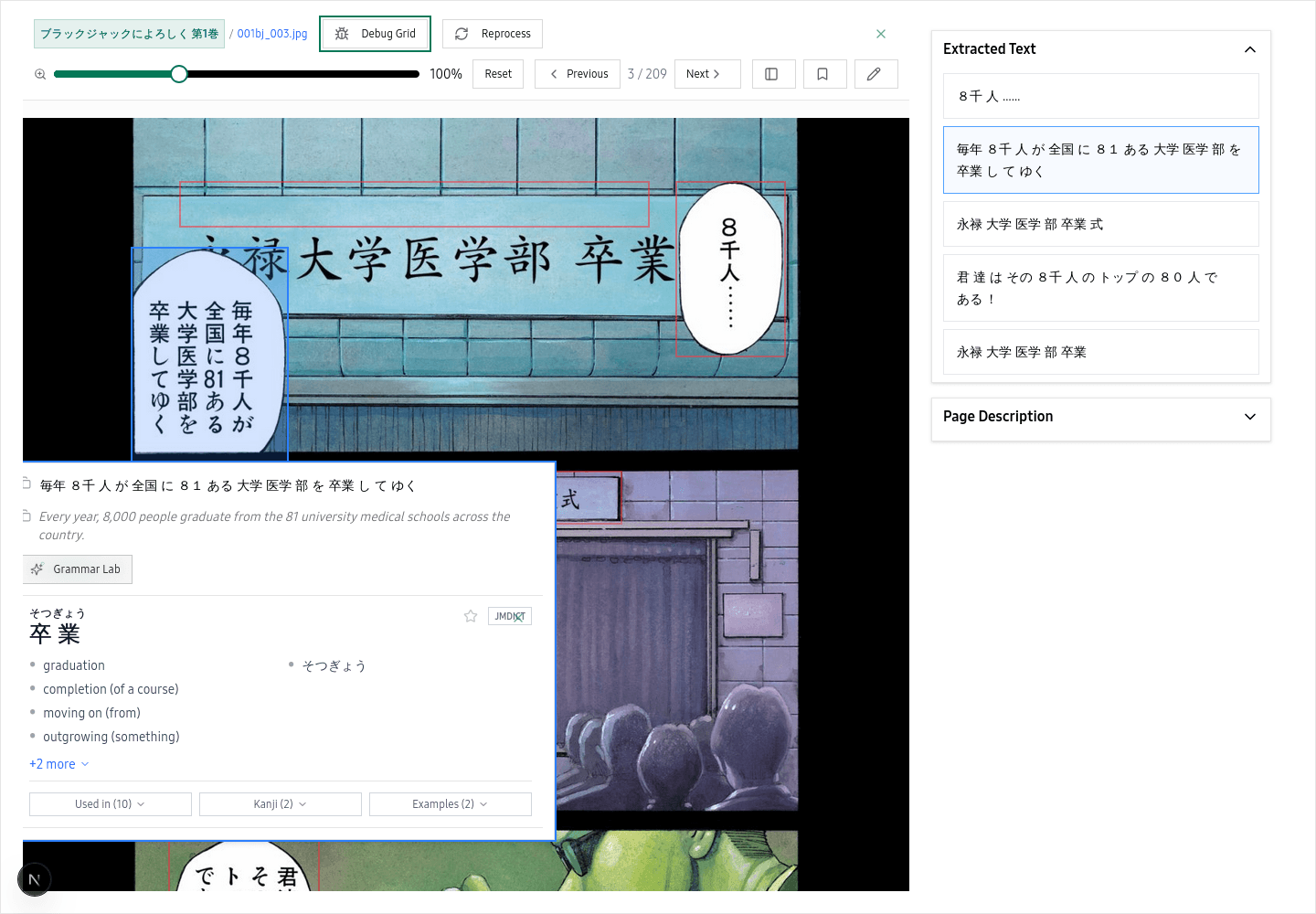 Navigate to the page in your library and open it in the reader
Click the reprocess button
Open the page menu (three dots) and select Reprocess. If you uploaded with the wrong mode, you can switch between Manga and Novel at this point.
Open any page in the reader, then use the floating control bar to reprocess
Wait for new results
The image is sent through the extraction pipeline again. This takes the same amount of time as the original processing (typically 10-30 seconds). The new results replace the old ones entirely -- previous OCR data is overwritten.
Before You Reprocess
Reprocessing runs the same AI on the same image, so it works best when the original extraction had a random miss. If the source image itself is blurry, low-resolution, or heavily compressed, a second pass is unlikely to produce dramatically different results. In that case, re-uploading a higher-quality version of the image will help more than reprocessing.
Switching the page type (Manga to Novel or Novel to Manga) during reprocessing can make a significant difference if the wrong mode was originally selected.
Related Pages
How to track OCR processing status and queue | yomeru.ai
Up to 3 images process at once; the rest queue automatically. Most pages finish in 10–30 seconds. Processing continues even if you close the browser.
Interactive reading overview | yomeru.ai
Every word in processed content is clickable. Tap to look up readings and meanings, select a sentence for grammar analysis, and resume automatically.